My Favorite MotionVFX Plugins for Final Cut Pro — 2026 Update
yuu
Oosawano BASE

Disclosure: This post contains affiliate links. If you sign up through them, I may earn a commission at no extra cost to you.
This is the English edition of my Japanese article, updated for November 2026.
Hi, I’m Yuu from Oosawano BASE.
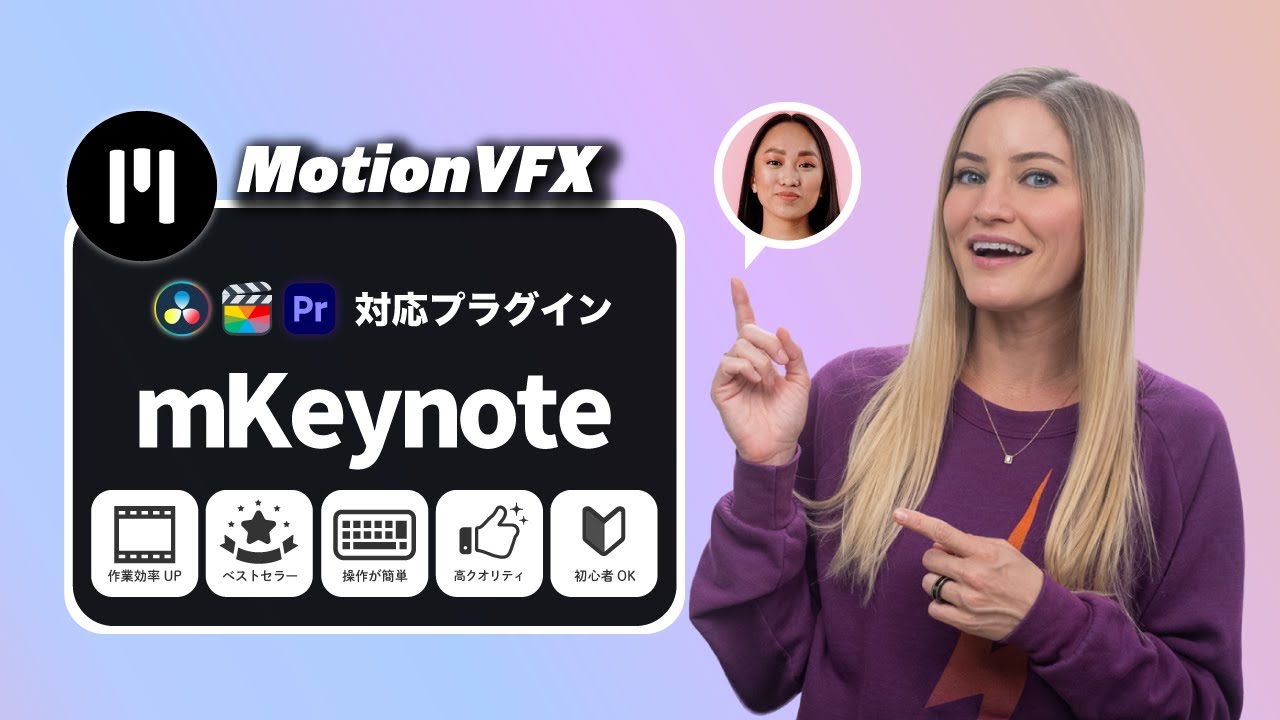
Today I’m reviewing mKeynote, a MotionVFX plugin for Final Cut Pro.
When I first wrote this review, I had already bought nearly every MotionVFX plugin I was curious about, and I had pretty much everything my channel needed. mKeynote is one of the reasons I felt that way. It borrows heavily from my beloved Apple’s presentation style, and it manages to be both practical and fun to use.
My guess is that many people who find this blog love Apple products and edit in Final Cut Pro. Personally, I use Final Cut Pro for everyday editing and DaVinci Resolve when I really go all in. Both are excellent.
But back to the point. Apple means Steve Jobs, and Steve Jobs means those famously cool presentations. Recreating that Apple look yourself is surprisingly hard in practice.
With mKeynote, you can get pretty close. It gives you around 100 titles and effects that turn simple steps into Apple-style presentation scenes. In other words, it’s for anyone who wants their explainer videos to look cool.
It’s one of my five most-used plugins, and everything in it is easy to operate, so it works for beginners and experienced editors alike.
The designs feel like they were made to Apple’s standards, and most people will find them stylish. Honestly, it’s just fun to use.
The promo video also featured Justine Ezarik (iJustine) as an ambassador, so after mKBHD, it’s another plugin with a big-name YouTuber involved. If you’re curious about that one, here’s my mKBHD review.
For ease of use, I’d put it near the top of every plugin I’ve tried. It’s a great pick for your very first plugin. It’s at its best on YouTube and social media rather than in films or music videos, and it suits slightly grown-up content like vlogs, gadget reviews and lectures more than pure entertainment.
I bought mKeynote around December 2022, and it quickly became a staple. I use it in almost every lecture-style video I make. It simply works really well with my kind of videos.
Since I post editing how-tos and product videos, I’d say anyone making that kind of content won’t regret it. Each element is versatile, and it saves me in situations like these:
Pop, pop, done. Editing just flows.
A similar plugin is mTutorial. Both are great, and I remember going back and forth between mTutorial, which is all about explaining, and mKeynote, which is all about visuals. My mTutorial review covers that side.
For combinations, pairing it with mTitle Kinetic 2 makes it even easier to get that Apple feel. Pairing it with mTuber 3 or mKBHD makes intro videos, explainers and social videos pretty much airtight.
Six months into using it, I had to ask myself whether anything bothered me. The answer was: almost nothing. Honestly, it’s a very good plugin.
The only regret I can imagine is buying it when it doesn’t fit what you make. Back when it was a one-time purchase, the price felt a bit steep (exchange rates didn’t help). Still, I felt an editor could earn it back with a single client job, and a YouTuber would save a lot of time with it.
That logic still works with a monthly plan, but only if you actually use it every month. So, no real downside, but think about your use and your setup first.
Plenty of editors have featured it on YouTube too, which tells me the quality is on the high side.
There’s now a sequel, mKeynote 2, and it’s also in DesignStudio. This review is about the original. Since both come with the same plan, the easiest move is to try them side by side during the trial.
A lot has changed since my original article. MotionVFX joined Apple in March 2026, and Final Cut Pro plugins are no longer sold one by one. They come in monthly plans:
Each has a 14-day free trial that becomes a paid plan unless you cancel, and prices exclude tax. You install everything with the free mExtension app, which needs macOS Ventura 13.6.9 or later and Final Cut Pro 10.6.5 or later. Here’s the MotionVFX pricing page.
Also worth knowing: in October 2026, Apple announced that MotionVFX content is coming to Apple Creator Studio, its monthly bundle with Final Cut Pro. If you already subscribe, check what’s included first. And if you edit in DaVinci Resolve or Premiere Pro, those versions of mKeynote are still one-time purchases ($109 at the time of writing).
That was my review of mKeynote. It’s the kind of plugin that would hold a spot in my list of the best MotionVFX plugins for a long time.
It’s a really good plugin, so I hope you’ll consider it. Just be careful: if you overdo it, you’ll end up like me, with a growing pile of plugins you never use.
So please plan wisely…
Then again, sometimes you should just go with your gut!
(Make up your mind, Yuu.)
Happy creating!